Managing Stakeholders
Last updated About 1 year ago
To manage the Stakeholders of your Project, navigate to the overview page of your Project and select the Stakeholder menu item to open the Stakeholder management page.
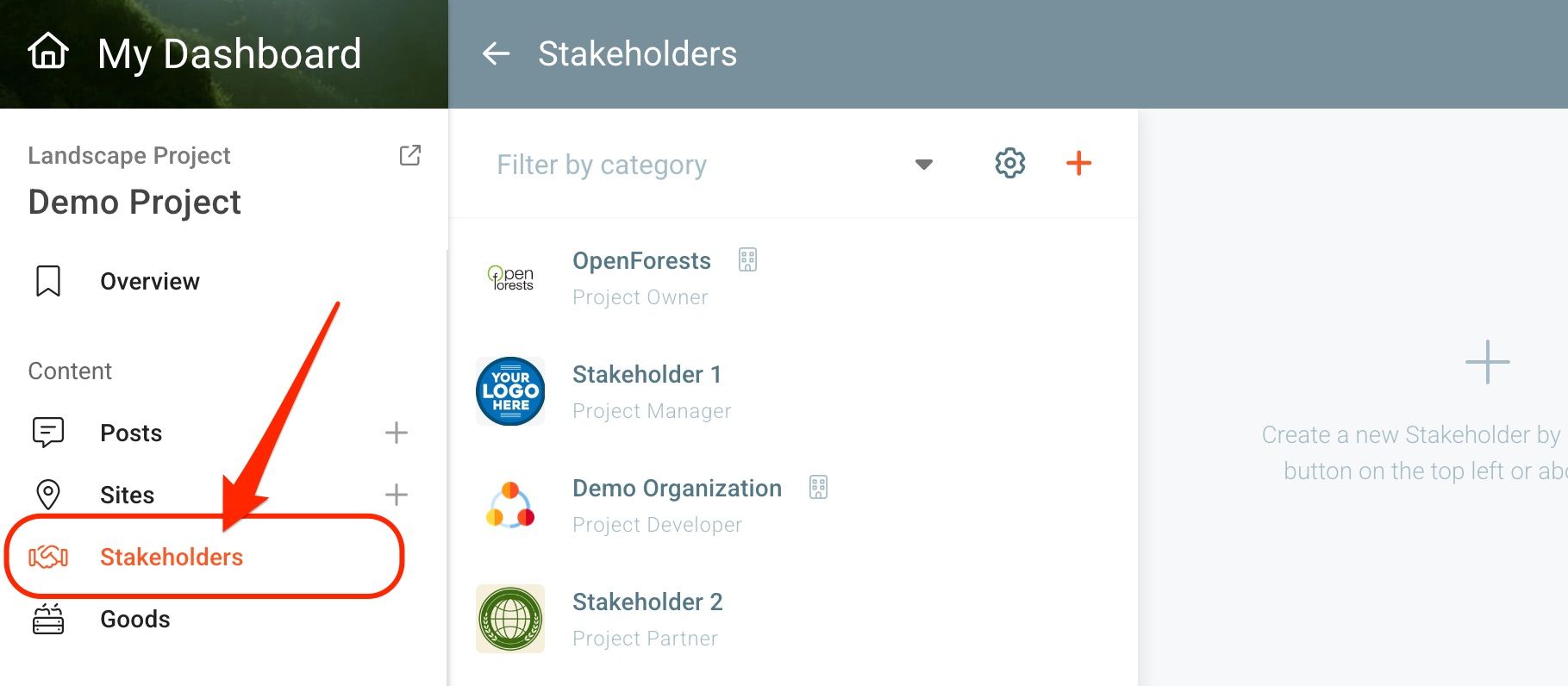
The Stakeholder management page lists all Stakeholders of your Project and allows adding new entries and editing, deleting and reordering existing ones.
Note: Since there is no 'draft' status, every new entry will be immediately visible in the public Project presentation.
Create a new Stakeholder entry
Please see Creating a Stakeholder entry
Edit Stakeholder
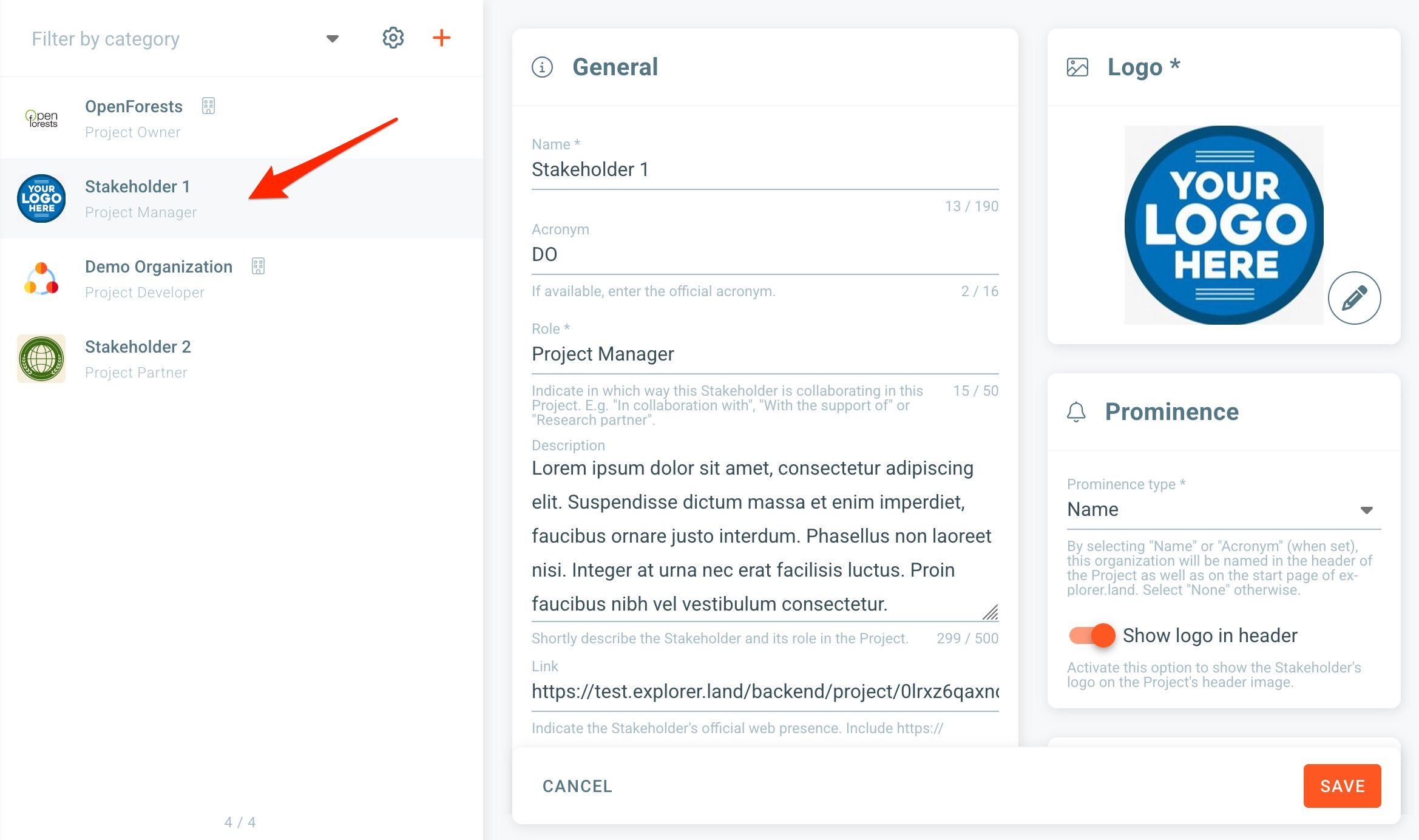
To edit the Stakeholder simply click on the Stakeholder of choice on the list. The Stakeholder page will open on the right side. Edit your changes and click SAVE when finished.
Deleting a Stakeholder
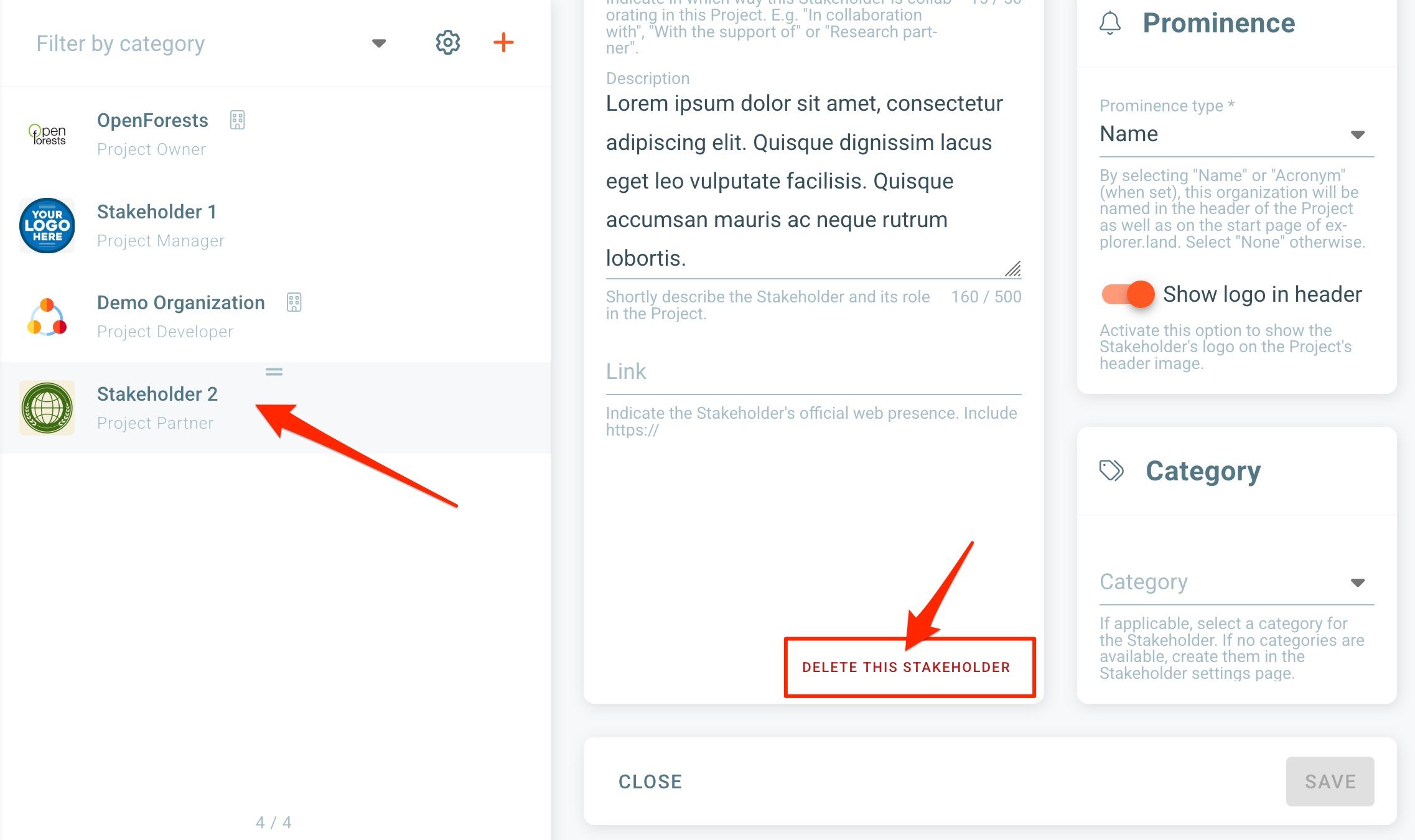
To delete a Stakeholder, click on the Stakeholder of choice on the list. The Stakeholder window will open on the right side. At the bottom of the Stakeholder page click DELETE THIS STAKEHOLDER.
Reordering Stakeholders
As soon as you have two or more Stakeholders, you have the possibility to reorder them by importance. The order of the Stakeholders will be reflected in different contexts of the public Project presentation.
To reorder the Stakeholder entries, simply drag and drop the Sort icon (=) on top of each Stakeholders row.
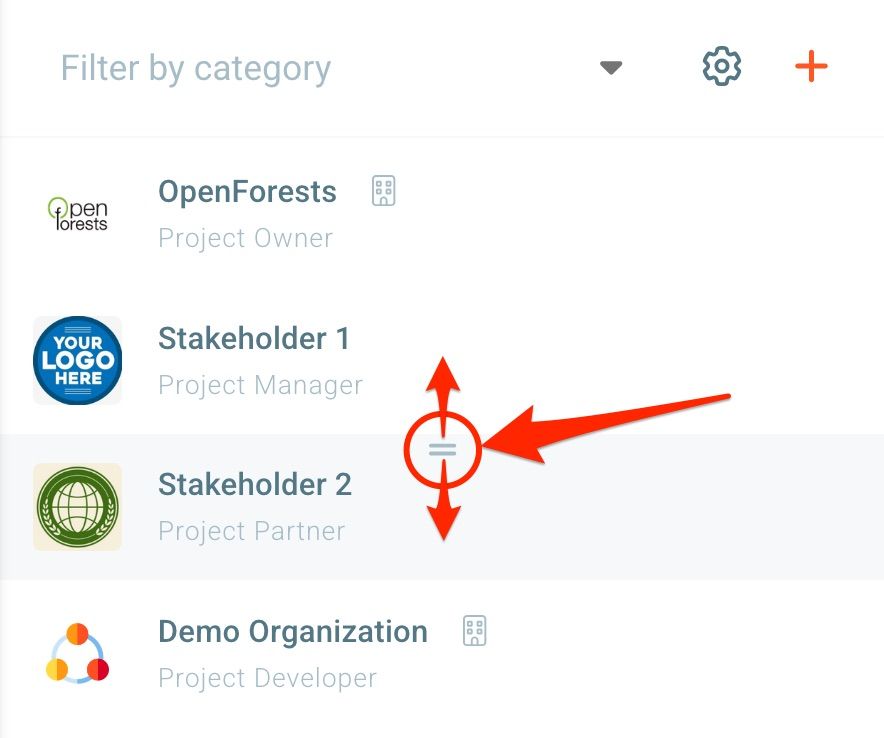
These changes are saved automatically.
Note: This order will also reflect on the logos and names on the project header.
Was this helpful?
Still need help? Ask the team