Creating a Stakeholder entry
Last updated 4 months ago
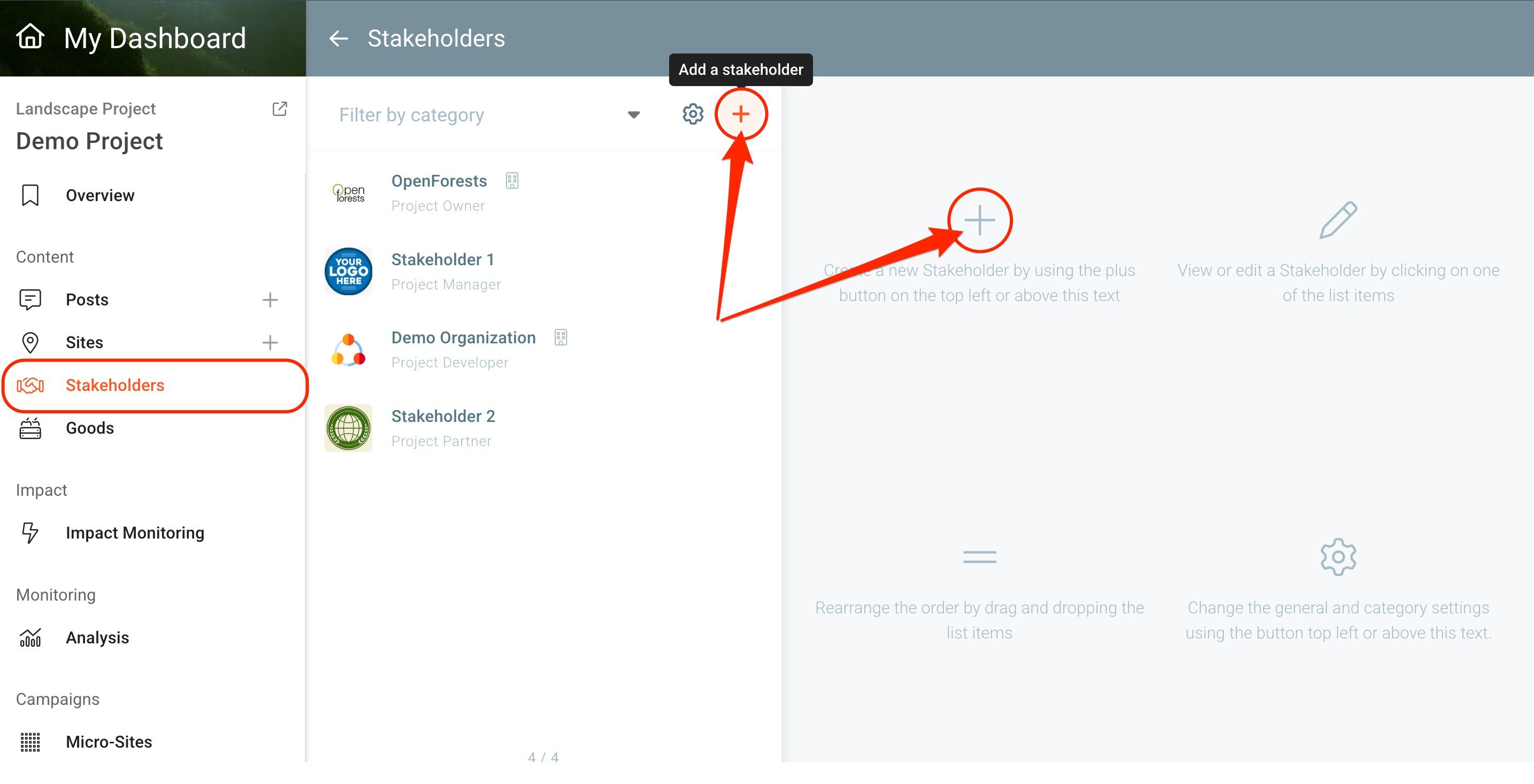
To create a new Stakeholder entry for your Project, navigate to the overview page of your Project and select the Stakeholders menu item. The Stakeholder management page opens. Click on one of the two plus (+) symbols to open the Stakeholder entry form.
The Stakeholder form
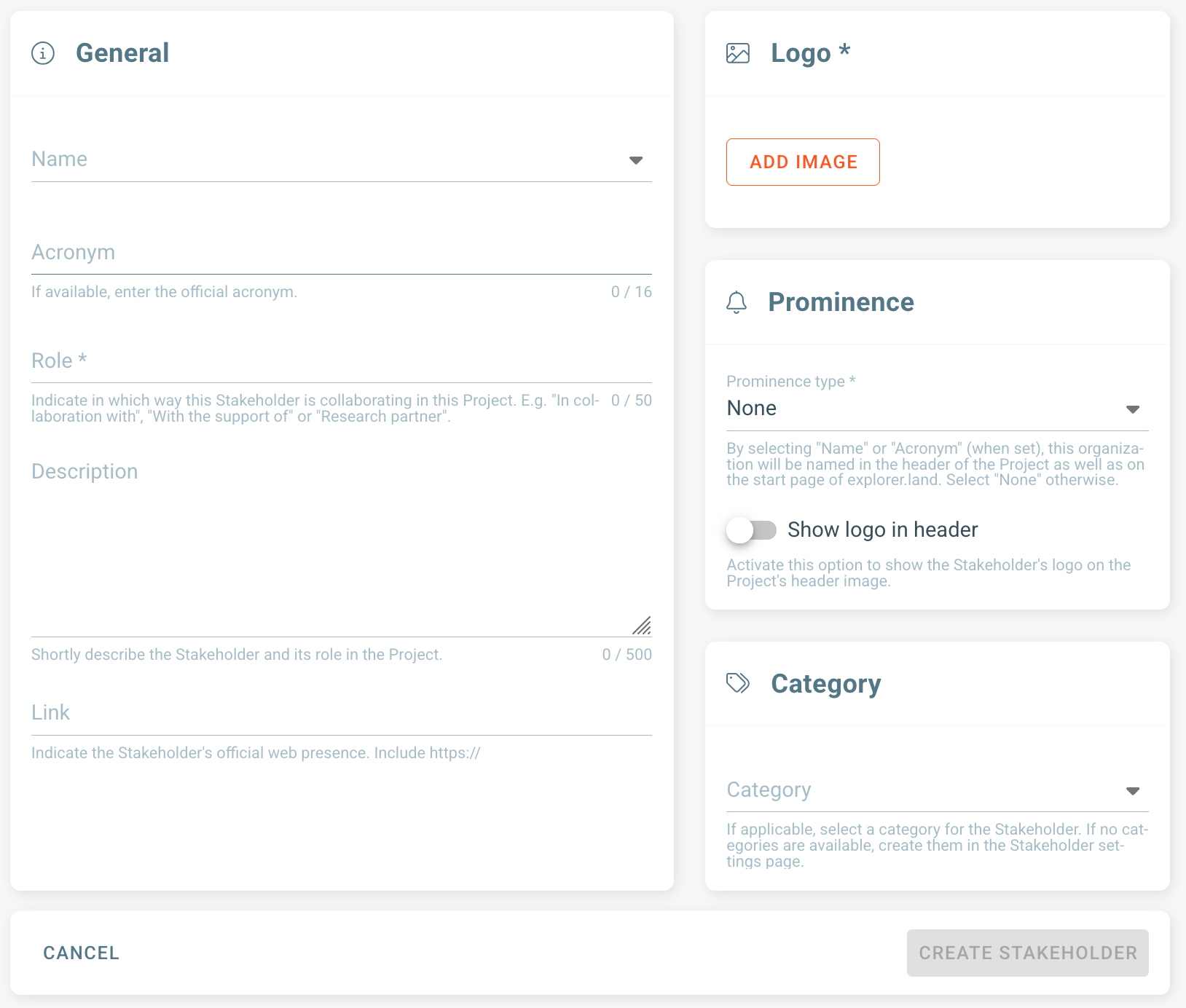
The form is composed by the following fields:
Name: Introduce the official name of the organization.
Acronym: Indicate the official acronym of the organization, e.g. WWF for World Wide Fund for Nature. Leave this field empty if no official acronym exists!
Role: Designate the role of the organization as a stakeholder of the project. A few examples are "Financial supporter", "Scientific partner", "In collaboration with", etc.
Description: Describe in a few words in which way the Stakeholder organization is involved in the project.
Link: Add a link to the organization's page.
Logo: Upload the official logo of the organization.
Prominence: Here, it is possible to decide whether the organization's logo and/or name should appear in the project's header section. Select name or acronym in case you want one of them to show up in the header. Leave none selected otherwise. Activate the check box to show the organization's logo on the header image.
Category: Select a category from the previously created categories. See Stakeholder Categories to learn more.
Save by clicking on the CREATE STAKEHOLDER button.
Note: Make sure you have the authorization of the respective organization to list it in your Project.
Was this helpful?
Still need help? Ask the team