Bulk Operations
Last updated 4 months ago
Some projects might have hundreds or even thousands of Sites. In some cases, it might be necessary to edit several of them in the same way. The Bulk Operations functionality allows doing just that, editing several Sites at once, avoiding the need for editing every Site individually.
Bulk Operations for Sites
Watch video tutorial explaining how the Bulk Operations work
Activating the Bulk Mode
Within the project overview page, navigate to the site page and activate the bulk mode.

Clicking on the Bulk Operations icon will activate the Bulk Operations Mode.
Once activated, the interface will change and provide new interaction possibilities:
The END BULK MODE buttons allows you to leave the mode at any time.
The Site entries are now selectable. Single Site operations are not longer available.
A Bulk Operations bar at the bottom shows how many Sites have been selected and which operations are available for those Sites.

A END BULK MODE button allows leaving the Bulk Operation Mode at any time ①, Sites can be selected ②, and a Bulk Operation bar is available with five different operation types ③. Single Site operations are not available in the Bulk Operations Mode.
Six operations are available:
Edit header image,
Edit categories,
Edit description field,
Publish,
Unpublish,
Delete.
Next, we will go through each one of these operations.
Carrying out bulk operations to several Sites
The first step is to select the Sites you want to edit. For that, just click on the respective entries in the list. Alternatively, you can also select all the Sites visible in the current list by clicking on the check box in the Bulk Operations bar at the bottom of the sites list.

The check box in the Bulk Operations bar allows selecting or unselecting all Sites on the sites list page. The operation icons in the bottom bar will only activate when one or more Sites are selected. Only those operations will be active which are available for the specific selected Sites.
Note: Keep in mind that you can also sort, reorder and change the amount of sites you see per page on the top of the sites list page. This is very useful if your working with a big amount of sites.

Editing header images
To edit the header images click on the respective icon as shown in the following image.

A popup window will open.

The "Edit header image" popup window will inform you about the current bulk operation and let you select the image to upload.
Select the image you want to use as a header image for the selected Sites by clicking on the ADD IMAGE button. Once selected, you can add image credits.
Note that existing header images will be overwritten with this operation. This cannot be undone.

Confirm and execute the operation by clicking on the UPDATE IMAGE button.
Editing categories
To edit the categories of the Sites, go to the respective icon in the Bulk Operations bar. A menu will open.

By hovering your mouse cursor over the "Edit categories" icon, a menu will open with three possible operations.
There are three types of operations you can carry out with categories:
Add categories
Replace all categories
Remove all categories
Adding categories
The "Add" operation allows you to add new categories to Sites without affecting already existing ones.
In the popup window click on the ADD CATEGORY button to add one or more categories.
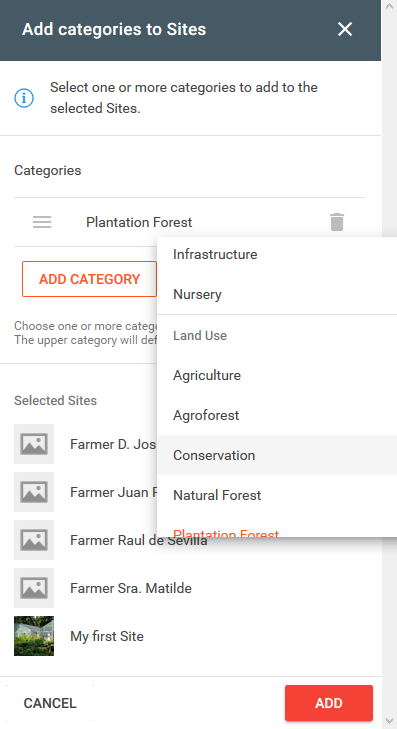
You can reorder the entries by priority before submitting.
Click on the ADD button to execute the operation.
Replacing categories
The "Replace" operation works similar to "Add", only that all existing categories will be substituted. Once executed, it cannot be undone.
Deleting categories
The "Delete" operation will remove all existing categories. Once executed, it cannot be undone.
Editing the description field
To edit the description field of the selected Sites click on the 'text' icon as shown in the following image.

The popup window will indicate how many of the selected Sites already have a description. Note that the description of these Sites will be overwritten!
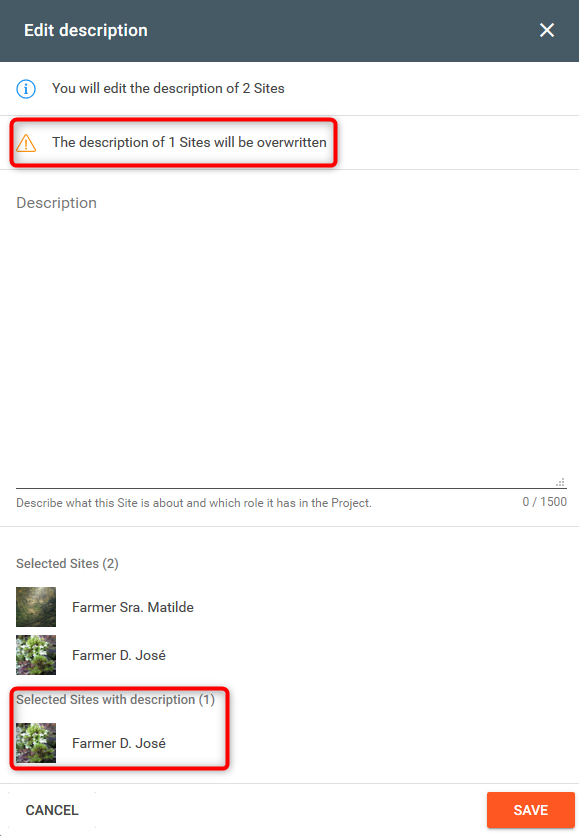
The editing popup window shows how many Sites already have a description [red rectangles] allowing you to confirm that the correct Sites were selected. Existing description will be overwritten with this bulk operation!
Edit the description field and confirm by clicking on the SAVE button.
Publishing Sites
To publish Sites click on the respective 'eye' icon as shown in the following image.

Note: The publishing icon will only be active if you selected at least one Site in the draft state.
Confirm your selection in the popup window and execute the operation by clicking on the PUBLISH SITES button.
Note: Already published Sites will not be affected by the operation.
Unpublishing Sites
To unpublish Sites (i.e. setting them back to draft) click on the respective icon as shown in the following image.
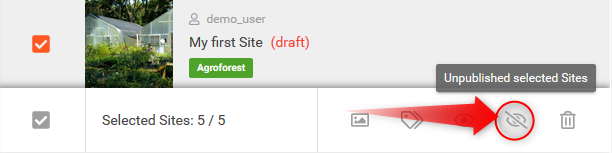
Note: The unpublishing icon will only be active if you selected at least one published Site.
Confirm your selection in the popup window and execute the operation by clicking on the PUBLISH SITES button.
Note: Sites which are already in draft will not be affected by the operation.
Limitations
It is not possible to unpublish Sites with Posts. Hence, when trying to carry out an unpublishing operation with Sites having at least one Post, you will get a warning.
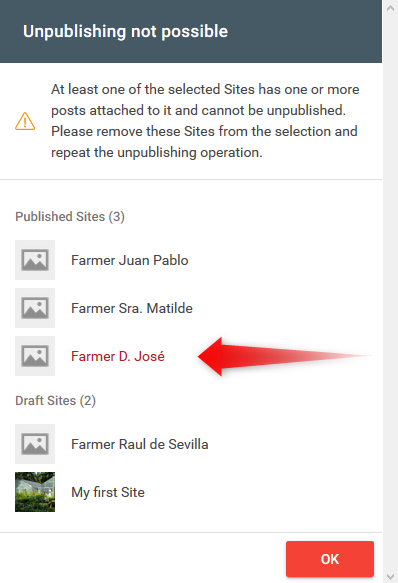
Unpublishing Sites with Posts is not possible. In the warning popup window, the respective Sites are shown in red.
In the popup window you will find the respective Sites marked red. Close the window and remove those Sites from the selection. Repeat the unpublishing operation.
Deleting Sites
To delete Sites click on the respective icon as shown in the following image.
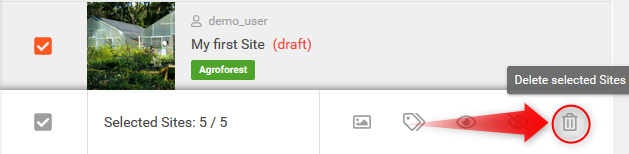
In the confirmation popup window click on the DELETE SITES button to confirm the operation.
Note: The deletion of Sites cannot be undone!
Note: Posts linked to any of the selected Sites will lose their geo-location upon deletion. The Posts themselves will not be deleted! It is possible to set new coordinates for them afterwards.
Exiting the Bulk Operations Mode
To end the Bulk Operation Mode click on the respective END BULK MODE on the top of the Sites list.

Was this helpful?
Still need help? Ask the team